Pages

Showing posts with label excel password recovery. Show all posts

Tuesday, January 15, 2013

Efficient Options to Unprotect the Protected Excel Sheet

MS Excel is one of the popular applications of MS Office suite, but is more widely used by the people who belong to financial field. Charted accountants, stenos, accountants, brokers, etc use this useful application to store their critical financial data. To protect their crucial data from unauthorized access, this very efficient application of MS Office suite enables password protection. Users can protect their Excel sheet at two levels:
  • Level 1: Password to Open: You can restrict the access of your Excel worksheet to authorized users only, by providing ‘password to open’ to it. After applying this password, no unauthorized user is able to open your Excel sheet. Whoever wants to access this password protected sheet has to provide the correct password.
  • Level 2: Password to Modify: You can prevent your Excel sheet from being modified by unauthorized persons by applying ‘Password to Modify’. In this way, the users who know the password to modify the sheet can only make changes in it.
In order to enable strong protection, it is recommended to provide both the passwords. Despite the usefulness of this option of MS Office, there can be situations in which, you may forget any of the above mentioned passwords. However, manual methods are there by which you can unprotect or remove the ‘Password to Modify’ applied on your Excel sheet. One of the best and most efficient manual methods for the same is:
  • Using the Google Account: You can use your Google account to remove or edit the applied ‘Password to Modify’ password. The steps for this are:
  • Login in to your Gmail account
  • Select the ‘Documents’ option provided at the menu bar of your account
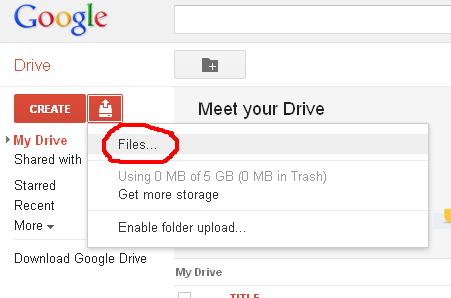
  • Click on the icon that is indicating document upload
  • Browse your password protected Excel sheet
  • Now you have to open this uploaded file with spreadsheet option of your Google mail as ‘File>>Open with>>Google Spreadsheets’ and make all the changes that you want.
  • After this download your edited file as Excel sheet.
  • Upon opening this downloaded file, you will see its ‘Protected View’. To remove the editing password, click the ‘Enable Editing’ button.
However, if you want to recover the ‘Password to Open’ applied to your Excel sheet, then you need to use a professional Excel password recovery tool. Reliable software uses ‘Brute Force Attack’ mechanism to ensure the success of the password recovery. Therefore, for cases in which you have forgotten the ‘Password to Open’ or the manual method is unable to do any needful, then use of a reliable password recovery software is recommended.
READ MORE - Efficient Options to Unprotect the Protected Excel Sheet

Friday, November 16, 2012

How to Crack Excel Password without Any Software?

-->
Password protection is one of main features of MS Excel which allows user to protect their confidential data from unauthorized access. There are two types of passwords which can be added to an excel file: "Password to Open" and "Password to Modify" (or edit excel sheet). Many times excel user forget their own password and hence loses access to their important (and confidential) data. To help such users I am writing about how to remove "Password to Modify" excel sheet without any software.
  1. Change the file extension of excel file from xlsx (or xls) to zip.

  2. Right click on the zip file and extract the content of this zip file.

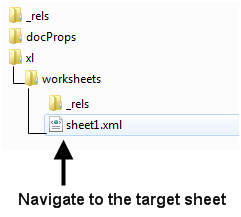
  3. In extracted zip folder navigate to location xl->worksheets and right click on the password protected xml sheet.
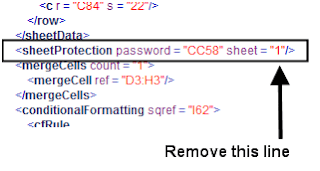
  4. Open this sheet with Notepad and then search for the tag “sheetProtection”.

  5. Once you find the “sheetProtection” tag then you need to delete this tag and save the file.

  6. Now replace the old xml file (in zip archive) with this edited xml file. (You can also replace complete xl folder simply by dragging it to zip archive).
  7. Now change the zip archive extension from zip to xlsx and open the file.

Now you can edit the excel sheet without any password.
Note: - (a) Always make a backup copy of original excel file to avoid any accidental loss of data.
(b) This method works only with MS Excel 2007 and 2010.
(c) This method does not work to unprotect excel sheet if it is protected with “Password to Open” excel file. In such situation you can use excel password recovery software to open password protected excel file.
I hope that by following the above mentioned steps you can easily remove password of your encrypted excel sheet.
READ MORE - How to Crack Excel Password without Any Software?

Tuesday, October 23, 2012

How to unprotect excel sheet from read only password ?

-->
Password protection is one of the most important features of MS Excel. Password protection feature ensures that only authorized user can see or modify the data of the excel file. This feature allows user to set (mainly) two types of password on excel file: Password to open and Password to modify. First type of password (Password to open) restricts the user from opening the excel file whereas second type of password (Password to modify) can be used to protect excel sheet (or cells) from unauthorized modification.
Many times it happens that the authorized user forget excel file password and hence they also lost access from opening/editing the excel file. In such situation most of the user take help of excel password remover software to recover lost password.
Here I am sharing how you can edit read only password protected excel file without any password remover software.
  1. Login into your Gmail account.

  2. Click on documents (or open http://docs.google.com/ after you have login into Gmail account).
  3. Click Upload Document icon.

  4. Browse the file you want to edit and upload it.

  5. Now open the uploaded file with Google spreadsheet (Click File-> Open with ->Google Spreadsheets) and make the desired changes.

  6. Download the edited file as an Excel file.

  7. Now open the downloaded file. It will open in “Protected View”. Click “Enable Editing” to remove read only password permanently. 

Now your file is unprotected from read only password.

This is one of the best method to unprotect excel sheet without using any password remover software. The only limitation of this method is that it can not be used to remove “password to open” excel file. You can recover “password to open” excel file by using excel password recovery software.
READ MORE - How to unprotect excel sheet from read only password ?

Sunday, October 21, 2012

Unprotect Excel Sheet with Brute-Force Attack and Masking Technique


-->
MS Excel provide many features to manage and analyze large volume of data. Graphical representation tools and inbuilt (mathematical, financial, statistical and logical) functions make it very easy for everyone to analyze and summarize data without any special expertise. Besides so many user friendly features, MS Excel also provides a very useful security feature called “Password Protection” to prevent unauthorized access (or modification) of valuable data. This password protection feature of MS Excel allows User to protect entire workbook, individual sheet or cells of a file. 

Many times it happens that Excel user forget the password enabled by them to protect their worksheet. In such situation it is really very difficult to unprotect excel sheet without password remover software. I searched a lot to find methods of removing excel password without software but did not get even a single method which can do this. From my search I analysed that almost all the excel password remover software are based on two features: Brute-Force Attack Technique and Masking Technique.

Let me explain you how Brute-Force Attack and Masking Technique help to unprotect excel sheet. 

Brute-Force Attack Technique – This technique involves making all possible permutations of characters (lower case letters, upper case letters, special characters, numbers) of your password. All excel password breaker software provides you the option to specify the probable length and characters in your password. On the basis of the password length and characters all possible permutations are made and run through for checking. Total time taken by software to recover excel password directly depends on the total number of permutations (which in turn depends on the length and complexity of your password). 

For example if your password is 3 characters long and include numbers, Upper case and lower case letters then there will be total 62 * 62 * 62 = 238328 guesses or permutations (Here 62 = 26 lower case letters +26 upper case letters + 10 numbers).

Masking Technique – Many time it happens that user remember first few (or any) characters of their password but not able to recall full password. In such situation Masking Technique allows user to specify the initial (remember) characters and replace the unknown characters by '?'. This helps Brute-Force process to search for the unknown characters only and hence reduces the time to crack excel password. 

Overall we can say that because of Brute-Force Attack and Masking Technique excel password remover software has very high success rate. So, if you forget your excel file password then you can use any excel password recovery software based on Brute-Force Attack and Masking Technique.
READ MORE - Unprotect Excel Sheet with Brute-Force Attack and Masking Technique

Thursday, June 14, 2012

Excel Password Remover to Reset Password of Protected Excel File

Dock icon for Excel 2011 for Mac
Dock icon for Excel 2011 for Mac (Photo credit: Wikipedia)

-->
Are you searching for an option to protect your Microsoft Excel sheet? Or you do not want any one to make any alteration in your MS-Workbook? Or you do not want anyone to even open your MS-Excel sheet until and unless you provide him/her a password? Then don't worry! This is possible with latest versions of Microsoft office. Confidentiality and privacy are the two words which developed the need of password protection in your Microsoft Office Suit applications. Therefore, you can save your important Microsoft Excel sheet in three different manners like:

  • Password To Open: Applying this utility no one can even open your excel sheet until and unless he/she has the password. You can do this via Save As>>Tools>>Security Options and an existing one Main Menu>>Tools>>Options>>Security.
  • Password To Modify: So, after applying this protection, you can protect your Excel sheet from unwanted changes. Thus, the people who only know the password can make alterations in your MS-Excel sheet. To do so go to Tools>>Protect Document or Unprotect Document

However, to remember a lot of password is out of the strength of humans and provide the same password to different files does also not make sense. Hence, various big organizations which use password to protect their Excel sheets also provide use MS Excel password recovery tool.

Let me tell you my example. I joined a new office last week, the person whose work I have to handle, had protected some of his Excel files and went without telling their password to anyone. However, to start the work I have to view few of them. The situation became worse when I found out that I can not even open some of the very important files. I immediately told the whole situation to my Team Lead and he recommended me to contact the system administration department. I contacted them and told them the case. Therefore, to recover Excel password, they installed a password recovery software in my computer and in just few clicks and short time I all of the passwords were saved in the text document format at the prescribed location in my computer.

An efficient Excel password remover software can recover both the passwords 'to open' and 'to modify'. These software use Brute-Force attack mechanism to give you 100% result. The software which I used provides various parameters that help to narrow down the search for Excel password. Hence, most of the software can recover the password from Excel sheets created in MS Excel 2007, 2003, 2002, and 2000.
Enhanced by Zemanta
READ MORE - Excel Password Remover to Reset Password of Protected Excel File

Tuesday, May 29, 2012

Remove Excel Password with 7-zip (Free Tool)

-->
Losing excel password is a pathetic situation. Without having correct password you could not access your important excel sheet. To recover lost excel password you have two ways
  1. Use some password recovery manual method.
  2. Use excel password recovery paid software.

Using excel password recovery software is easy but expensive method. Before using paid tool first try all other ways to recover lost password. Here I am going to explain you a very effective way to remove excel password.
To use this method you first need to change the file extension of your excel file from .xls/xlsx to .zip. Few computer users find it difficult to change file extension in windows 7 so I am explaining here, how you can change extension of any file.
  1. Open drive where file is stored.
  1. Click on Organize > Folder and Search Option.
  1. In Folder Option > Click on View.
  1. Uncheck “Hide extensions for know file types”, click Apply > OK.
  1. Now rename your desire file with your desire extension.

Remove excel password: 7-zip is a open source tool which you can download free from Internet. Download it and follow steps written below...
  1. Download and Install 7-zip tool (free tool).
  2. Change extension of excel file from .xls/.xlsx to .zip.
  3. Now Open it with 7-zip.
  4. Go to worksheet 1 of workbook by clicking XL-worksheet.
  5. Right click on it and click on Edit.
  6. Now search for >password< or password and delete all data related to password and save.
  7. Now revert its extension from .zip to .xls/.xlsx.

You need to follow each step to complete the removal of excel password. Some times when you try to edit workbook it will show some garbage value that means 7-zip is not compatible with your operating system. Download correct version of 7-zip for hassle free excel password removal.
READ MORE - Remove Excel Password with 7-zip (Free Tool)

Friday, May 18, 2012

Recover Password of Protected Excel Wordbook by Using Password Revealer


-->

To improve security in MS Excel and protect your workbooks from unnecessary modification by unauthorized users, Microsoft has introduced advanced password-protection. You can secure your whole workbook or some specific elements in your workbook by applying a password. Only authenticated users will have the right to make changes to the workbook or its individual elements. You can apply two different types of passwords to an Excel workbook: 'Password To Open' and 'Password To Modify'.

The 'Password To Open' feature can be used to prevent the illicit or unwanted users from opening the Excel workbook. This feature uses any of the standard encryption methods to secure data in the file. You can do this via Save As>>Tools>>Security Options and an existing one Main Menu>>Tools>>Options>>Security. Additionally, if you want to keep other users from changing the structure of your Excel workbook, you can use the 'Password To Modify' feature. With this feature, you can define a guideline for others and then, they need to follow this guideline for modifying the content or formatting of your workbook. To do so, go to Tools and choose Protect Document or Unprotect Document.

However, if there are a hell lot of passwords, there is always a high risk of losing these passwords. These passwords will keep on clogging up your brain and consequently, you forget them when trying to unlock your password-protected Excel workbooks. At this stage, you need to take help of professional MS Excel password recovery software.

Let me tell you my example. I joined at a new office last week. The person who left the organization had protected some of his Excel files. He didn't tell the passwords to anyone. However, I had to use those files in order to start my work. But, I found out that I cannot even open some of the important files. I immediately narrated the whole situation to my Team Lead and he recommended me to contact the system administration department. I contacted them and told them this problem. To recover Excel password, they installed a password recovery software on my computer and it was all over in just a few clicks. All the passwords were saved in the text document at a specified location in my system.

An efficient Excel password recovery software can easily recover both: 'password to open' and 'password to modify' set to your Excel workbook. These software use Brute-Force attack mechanism to give you the recovered password with 100% accuracy. The software which I used provided me various options to narrow down the Excel password search. 
READ MORE - Recover Password of Protected Excel Wordbook by Using Password Revealer

Monday, April 23, 2012

How to Solve an Error Which Pop Up While Opening Password-Protected xlsx


Password-protected excel (.xlsx)file sometime refuse to open with correct password and gives an error message such as "Excel cannot open the file "(Name).xlsx" because the file format or file extension is not valid. Verify that the file has not been corrupted and that the file extension matches the format of the file". With this error message you can easily figure out that your file does not have valid file extension that's why it could not open with correct password. In this situation you can use two methods first try to figure out the exact problem and then fix it. Second use excel password remover to remove password from excel file.

Cause of The Problem: Above error message occurs due to two causes

  1. File corruption : If excel file (with .xlsx extension) get corrupt then it is possibility that it would not accept your password because encrypted password file is also get corrupt due excel file corruption.
  2. File Extension Get Changed: When you are sending excel file (.xlsx ) for review, above problem will occurs. The workbook file is saved as an Excel binary workbook. However, the workbook has an .xlsx extension that is appended to the file. That's why above error message will appears even when you are inserting correct password.
Solution : This problem have very simple solution, when you are sending password-protected excel file (.xlsx) any where then try to save excel file in the following formats which are listed below...
  1. Excel Binary Workbook (*.xlsb)
  2. Excel 97-2003 Workbook (*.xls)
Above solution will resolve error message which you are getting and you will able to open password-protected file with your correct password.
READ MORE - How to Solve an Error Which Pop Up While Opening Password-Protected xlsx

Tuesday, April 10, 2012

Are you aware of Excel Password Types?

-->
We all must have heard very frequently about types of files but have you ever heard about types of Excel password. Let me share more about it so that you can be aware about it. MS Excel is has five types of password security through which you can protect important data of Excel worksheets. You can protect your excel worksheet with 5 different types of password protection methods.
I am specially writing this article only for those respective readers who are searching for the effective method to secure excel worksheets. This share information can benefit to accountants, charted accountants, brokers, stenos and every other individual who use MS excel to maintain all the records and calculation for their particular activities. 

Types of Excel password
Type1. Password to open the Worksheet
Type2. Password for Modifications
Type3. VBA Modules Password
Type4. Worksheet Password
Type5. Workbook Password
  1. Password to open the Worksheet:
You can assign passwords to the excel worksheets and prevent any individual from accessing it. Follow these steps:
• Open the .xls document to make it password protect.
• Go to File Menu and Select the Save As option.
• Go to Tools tab on the top of the Save As window and choose the General Options… option.
• You will see Save Options window, then enter the desired password in the Password to open text box.
This way you have protected the Excel worksheet. So in future if any unauthorized user wanted to open the worksheet then Microsoft Excel will ask to enter the same password. Without correct password it will never open. This way you have protected your excel worksheet.

2. Need Password to Modify Excel Worksheet 

It is similar to previous option. In this method if you have anything to modify on the excel worksheet you need to enter the password to modify the excel worksheet file. This way we can protect excel worksheet from any change in the data or figures which were entered before. Here are the simple steps: 

• Open the .xls document to make it password protect.
• Go to file menu and Select Save As option.
• Go to Tools tab on the top of the Save As window and select the General Options… option.

• You will get the Save Options window in display, you just need to enter the desired password to protect the excel worksheet from any modification. Once you have entered the password then your excel worksheet be protected with password and restricted for unauthorized user.
Any modification will be possible through authorized individuals only, with whom you may share the password. 

3. VBA Modules Password: 

Use of macros in Excel sheet makes various calculations very easy. We can save time for long calculation & reports managing by implementing some important macros. In Excel we use VBA modules to set the macros in the file. You can also protect excel sheet so that Visual Basic for Application module cannot be changed by any unauthorized user. To make VBA modules password protected, you need to follow these steps:
• Select the VBA module and right-click the mouse button.
• Select the VBA Project Properties… option.
• Click the Protection tab.
• In this window, check the Lock project for viewing option and assign password in the Password to view project properties dialogue box.
• Click OK.
The VBA module is now protected with password and secure from any unauthorized use.

4. Worksheet Password: 

We can also protect several worksheets in a single .xls file like Sheet 1, Sheet 2 and so on... To make them password protected you need to follow these simple steps:
• Go to Tools menu
• Choose Protection > Protect Sheet option. You will see the Protect Sheet window
• Select amongst the number of options for your worksheet. (These options depend on the working version of MS Excel; I am working in MS Excel 2003)
• After selecting the options you can assign password to the worksheet.

5. Workbook Password: 

Like Worksheets, excel workbooks can also be protected in the similar way of protecting worksheets.
• Go to Tools menu
• Choose Protection > Protect Workbook option. You will see The Protect Workbook window.
• Choose both or appropriate option from Structure and Windows and assign the password.
You can also check this:
• Go to Tools menu.
• Select the Protection > Protect and Share Workbook… option. The Protect Shared Workbook window will be displayed. This enables you to share the workbook with track changes.
• Check the Sharing with track changes option. This would activate the Password text box.
• Assign password in the Password text box.

These are the 5 methods or tips of password protection which can help you to save your excel sheet access from unauthorized user. 

I am sure you will apply these methods to save your excel worksheet data from unauthorized users. It is quite possible sometimes we forgot the saved password or set password in such situation you can use third party PasswordRecovery software to restore or reset the forgotten passwords of excel files.

READ MORE - Are you aware of Excel Password Types?

Monday, March 26, 2012

Types of Excel Password and Methods to Recover These Passwords

Alternative icon for excel amateur
Alternative icon for excel amateur (Photo credit: Wikipedia)
-->
MS Excel is one of the most widely used spreadsheet applications that is typically used for maintaining records. It is well- known for performing fast calculations and for its advanced macro programming language called Visual Basic for Applications. It is a cynosure of both the office and home users. You can also secure your Excel spreadsheet by applying a set of passwords. In this way, you can prevent unauthorized users from accessing or tampering with your work-related data. You can protect a single cell, multiple cells, or the entire Microsoft Excel sheet. Microsoft provides two types of password protection to your excel workbook:

  • Password To Open: The 'Password To Open' prevents your Excel workbook from unauthorized or unwanted user access. You cannot open your Excel workbook without knowing its 'Password To Open'.
  • Password To Modify: After you apply the 'Password To Modify', your workbook (excel sheet) becomes 'read only'. This means that no one can make changes to the Excel workbook without knowing its 'Password To Modify'.

However, a majority of users are inclined to set strong passwords to their Excel files. As a consequence, they end up losing these passwords and making their important records and other data in the spreadsheet inaccessible. To deal with such circumstances, you need to go for excel password recovery through a competent third-party tool.

Let us discuss a practical scenario. Suppose you are an HR of a big multi-national firm. You are responsible for creating a salary description sheet in MS excel 2007 for every employee and also protect this document from authorized user access. To accomplish this, you set a 'password to modify' to your Excel file. You also maintain a Word document, which contains passwords for all the employees. One fine day, you unknowingly delete the Word document by pressing 'shift+delete'. Soon after this, you realize that you have done a blunder. At this stage, the need for an Excel password recovery software ensues.

These third-party software use Brute-Force attack to try out every possible character combination for cracking the lost Excel password. They can accurately recover both 'password to open' and 'password to modify'. They use advanced masking techniques to effectively narrow down the password search and also allow saving the password recovery log in a separate text file. Additionally, they support MS Excel 2007, 2003, 2002, and 2000.
Enhanced by Zemanta
READ MORE - Types of Excel Password and Methods to Recover These Passwords

Wednesday, February 22, 2012

How to Solve Error in MS Excel 2010 Password Protection

-->
MS excel 2010 have very strong protection so that any unauthorized user can't open password protected excel sheet. Sometimes authorized user faced error to open protected excel file. An error message will pop up “Excel cannot open this file. The encryption type used is not available, contact the author of the files. More encryption types are available using the High Encryption Pack” when you tried to open excel file. Then you may find another error message “Excel is unable to encrypt your file. Please contact your system administrator to resolve this problem. Do you wish to remove encryption and try again?” when you are trying to save this file.

Cause of problem: There are several reasons for above written problem. It may be there is problem in setting permission for users. If user don't have ownership permission then accessing the excel file is difficult.

Solution: First check whether you are the owner of that file or not.
To check this you need to follow these steps:
  1. Right click on the file.
  2. Click on properties.
  3. In property windows go to security.
  4. Now click on advance tab.
  5. Go to owner tab.

In owner tab you can find the current owner of this file. If user (by which you are logged in) is not the owner of this file then click on Edit. If you have User Account Control enabled, press on OK. In the owner windows other users or groups. Now type the User name or the group of users to whom you want to provide ownership of selected folder.

If you want to give ownership to all administrators then type “Administrator”. If you want to only one user to be owner then type user name and press on Check Names. Now in the owner windows select the user or user group that you just added and select Replace owner on subcontainers and objects and press OK.

After completion of above procedure you will receive a confirmation message which will say that ‘Now you are Owner of this folder’ then Press OK.

Most probably your problem will solve by applying above written method but if problem persist then contact to Microsoft Support for farther assistance.
READ MORE - How to Solve Error in MS Excel 2010 Password Protection

Thursday, February 9, 2012

Recover Your Lost Excel Password In Few Mouse Clicks


-->
What are the quality of a best friend? Let me tell you a person to whom you can trust, with whom you can share every secret of your life without a fear of leaking to outside World, with whom you can spend hours without getting bored or sometimes without uttering a single word. With out sarcasm I can say my laptop is my best friend as I spent almost 20 hours a day with it as well as it keeps all my important files, folders, data, and information with it with full security and protection. However, coming into the reality, I used to protect my important MS-Office files through passwords but at times it becomes really very difficult to recollect all the passwords. If you are same as me and always deals with the fear of forgetting passwords then you should also choose a reliable Excel password recovery software.

Let me tell you what circumstances led me to buy a recovery software. I was maintaining a balance sheet for my tax details. In the end of the financial year when I have to submit the tax, I tried opening that excel file and realized that I forgot it's password. Whenever I think about that situation I still fell somewhat scary whenever I think about that situation. However, I did all the possible efforts from my side to get recollect the password but with no luck. During this I got to know that Microsoft does not provide any inbuilt utility to recover lost or forgotten passwords. At the same time one of my colleagues pinged me up to get some information about taxation. I told him the problem from which I am suffering, he suggested me to go for a password recovery software.

He was not very much sure about these software as he himself has not used it before but heard about them somewhere. However, this information provided by him worked as a silver line in the darkest cloud of my life as I was not at all aware of these kinds of software. I searched over Internet and found that there is a tough completion among Excel password recovery software. These software can recover lost or forgotten Excel password with 100% assurance. Thus, after a deep swim into the sea of Excel password recovery software I found one which is most commonly appreciated by the users. This software is exclusively for MS-Excel 2007, 2003, 2002, and 2000 and uses 'Brute Force Attack' mechanism to recover both passwords 'To Open' and 'To Modify' for Excel sheet. The best feature of the software is that it allows the user to save the password recovery log in .txt file format that can be opened in the text editor like notepad. Thus, after downloading, installing, and few more simple recovery steps got my forgotten password back.
READ MORE - Recover Your Lost Excel Password In Few Mouse Clicks

Wednesday, September 21, 2011

How to Change or Remove Password of MS Excel Workbook

-->
MS excel is mostly use for creating report of business transactions with useful information. To secure the information from unauthorized viewer users put strong password on excel files. Users can set to type of password on MS excel workbook, password to modify and password to open. Sometimes users have to share these passwords with others due to several reasons. Now user need to change or remove password from the excel file because it has been shared with someone. It is very easy to change excel password with follow instruction as written below.

How to change MS excel password:
1. Open the workbook.
2. On the File menu, click Save As.
3. On the Tools menu, click General Options.
4. In the Password to open or Password to modify box, double-click the asterisks.
5. Type the new password and then click OK.
6. When prompted, retype the new password, and then click OK.
7. Click Save.
8. If prompted, click yes to replace the existing workbook.

How to remove MS excel password: This procedure is almost same as changing password but at the last step it is little bit different.
1. Open the workbook.
2. On the File menu, click Save As.
3. On the Tools menu, click General Options.
4. In the Password to open or Password to modify box (or in both boxes), double-click the asterisks and then press the DELETE key.
5. Click OK, and then click Save.
6. Click yes to replace the existing workbook.


How to recover MS excel password: If you have forget excel password then MS excel will not allow you to open excel workbook without having password. In this situation you could not change or remove password. You need Excel password recovery to regain access of your workbook. You can do it with excel password recovery software.

Enhanced by Zemanta
READ MORE - How to Change or Remove Password of MS Excel Workbook

Friday, August 12, 2011

Recover MS Excel 2007 Password Without Any Password Recovery Software


-->
-->
Users set password on MS excel spreadsheet to protect from unauthorized access but sometimes password creates problem to access the excel spreadsheet when they forget or lost it. There are several tools are available to reset MS excel 2007 password. But all tools are paid and you have to spend some bucks to use those tools. Here I am going to tell you, how you
can remove password of MS excel 2007, without using any tool. MS Excel 2007 have different types of file with file extent ion like xlsx, xlsm, xltx, etc. these file types are called Open XML because these file type contains XML files. You can see XML documents which makes excel spreadsheet by changing its extension to zip.
You can remove excel password by editing Open XML files. Follow the steps given below to remove password of password-protected excel files.
  1. Create backup of password-protected excel file.
  2. Change the file extension to .zip from .xlsx.
  3. Now extract the whole content of zip file.
  4. Search for xml format of targeted sheet. You will find it in ‘xl -> worksheets’ directory.


  1. Open the xml file of targeted sheet in xml editor.
  2. Now search for ‘sheetProtection’ word in that xml file and remove it.


  1. Save this edited xml file and replace it with old xml file in zip files.
  2. Now change the extension from .zip to .xlsx.

Double click on spreadsheet, it will open normally (it will not ask any password). This method will work for MS Excel 2007 you can also try it for higher version of MS Excel, but I didn't test it. For lower version of MS Excel you need to use excel password recovery software to recover lost password.
READ MORE - Recover MS Excel 2007 Password Without Any Password Recovery Software

Wednesday, July 27, 2011

How to Reset password of Microsoft excel

Nutch robotsImage via Wikipedia
-->
Password protected Excel workbook does not allow anyone to access data from it. The blockade of the Excel workbook was not possible in earlier versions of Excel. But now we can protect a workbook in Excel. Set a password for the file is a good way to prevent data theft and improve safety. However, the file remains protected from unauthorized access, the problem comes when you have lost password. Excel workbook can not be opened without a password. To get access of our data we need to recover Excel password. For the recovery of Excel workbook, a third party Excel password recovery software is a good option.

Imagine a situation, in which you stores some important data in an Excel workbook. For security reasons, password is applied so that no one can access it. Have not had access to the Excel workbook for a long time. And now you've forgotten all characters. you must have same set of alphanumeric charectors which you set as password, without this password you could not open you excel sheet.

Do not panic. Not that big a problem. To recover excel password do things which are written below. Try to remember the password! Search for copying or notebook in which I have kept the password. Try using one of these passwords that apply to other software applications and email clients.

If you can not remember or take the password, then it is advisable to opt for a third-party Excel password recovery. With the help of these tools, you can unlock your password protected Excel spreadsheet. Today, the number of tools are available on the market that can recover Excel password instantly. You do not need technical knowledge to use this software. Just do a simple Internet search. These tools are non-destructive nature, and have been well described procedures, and a good ability to recover password. Select a software according to your choice.
READ MORE - How to Reset password of Microsoft excel

Thursday, May 19, 2011

How to select excel password recovery software

PasswordImage via WikipediaMS excel used by millions of users world wide. It help to organize our data and able to do complected calculation in fraction of second. Passwords protect excel worksheet from unauthorized access. But some times you are trying to open password-protected xls/xlsx file and a prompt appears which is asking for password to open and password to modify. Your all efforts are gone waist because you are not able to recall password.

You can find several excel password recovery tools on Internet. These software basically used two methods to recover lost password, 1) Dictionary Attack 2) Brute Force Attack. In dictionary attack method, software have own inbuilt dictionary of all possible combination of words. Tool try to match your password with these words. If password is of simple combination of words like all Caps or all lower case then these software works very fast with dictionary attack method. But if password is combination of upper and lower case with special characters then password recovery time will be very long.
Software create every possible combination of words and matches with your password in Brute Force Attack method, if your password is too long and complex then it take time to recover.

User always choose little difficult password for security reasons. It consist of letter, number and special characters. You need to very careful while purchasing password recovery software. A very advanced excel password recovery software is needed for recovery of these type of passwords. First use demo version then go with full version.

An advance xls password recovery tool have password masking option. This option narrow down your password and reduce password recovery time. Like if you remember first letter, length of your password and you never uses number or special character, then you can recover it in few minutes. These tools works on “more precise masking, more frequent get password” concept.
Enhanced by Zemanta
READ MORE - How to select excel password recovery software

Friday, April 15, 2011

How to reset password of MS excel file

Microsoft ExcelImage via Wikipedia
-->
Heve you ever faced such a problem in which you forget password of youe excel sheet or workbook. Or some of your co-worker left office and forget to remove password from excel sheet and that co-worker not in contact now ? If you are involve any of above condition then your need to recover excel password with some effective password recovery software. In this situation you can do two things. One try to open password with conventional methods or use excel password hrecovery software to recover it.
Microsoft Excel provide password option for security point of view because ms excel contains some of confidential information. Password protected excel sheet cannot be edited if anyone try to edit, it will give error message.
It is very common that any one can forget excel password. Because nowadays peoples have several password so they can't remember which password they set for which files. If you lost your excel password then don't worry you are at right place, you just need to find excel password recovery software which meet the configuration of your system. Other then using third party software their are several excel password recovery methods are available. But those are very complicated and are only for computer expert users. For home users its better to use some password recovery tools it will save your time and efforts.

Excel Password Recovery is a powerful password recovery software to retrieve forgotten
Microsoft excel passwords, allowing you to easily see the wordbooks and information of the spreadsheets. This password recovery tool supports to recover Excel Password of all versions. In addition to the modes of attack powerful brute force attack, brute-force with mask attack, dictionary attack, this software have intractive interface and it is very easy to handle.
Enhanced by Zemanta
READ MORE - How to reset password of MS excel file

Monday, April 4, 2011

How can i remove password of xls and xlsx files

This is a gel documentation system with a pc, ...Image via WikipediaComputers are used to improve lives and help make things easier. However, there are certain problems that may arise on the while using computer. This includes loss of passwords that block valuable personal information. We use passwords to ensure that others are not able to access such personal information and important files, but when you forget the password or completely eliminated, can be a scary situation. Small businesses are based primarily on spreadsheets critical financial information and the business can literally stop if the data in a spreadsheet is not available.

Password recovery for MS office is possible so there is no need to worry if a password is lost or removed. MS Excel password recovery software helps relieve stress and tension, and that means you never have to worry about remembering all kinds of different passwords just to log in and access to work. MS Excel password recovery software comes with valuable features as a handy auto-save feature. After you have the MS Excel password recovery software it's easy to start and save your password. That is one of the best features of this software is that it has such easy to use interface.

Even novice PC users will be able to handle and find the software very easy to navigate. Although the password recovery software can be easy to use is actually quite complex, with the ability to run both dictionary and brute force password attacks. A dictionary attack to try every word in a dictionary as the password. If that fails, brute force attack tray all combinations of letters and numbers. A brute force attack is very likely to take hours while a dictionary attack can succeed in minutes.
Enhanced by Zemanta
READ MORE - How can i remove password of xls and xlsx files

Tuesday, February 8, 2011

MS Excel Password Recovery In Easy Steps

Microsoft ExcelImage via Wikipedia
-->
Password protected Excel workbook does not allow anybody to access data from it. Locking your Excel workbook was not possible in early versions of Excel. But now it is possible to protect Excel workbook . Setting a password for your file is a good way to prevent data theft and to enhance its security. Though, the file remains protected from unauthorized access, problem comes when is lost it. Excel workbook cannot be opened without password. To avoid loss of key problem, there is a need to recover Excel password. For recovering Excel workbook, a third-party Excel password recovery software is a good choice.

Imagine a situation, you store some data in an Excel workbook. For security purpose, you apply a security so that no external source can access it. You have not accessed the Excel workbook since a long time. And now you have forgotten the set of alphanumeric characters .You must have it, to open Excel file. If you try to access it without giving the it, an error message is displayed.
Do not panic. It is not so big a problem. To avoid such a problem you need to recover Excel password. Try to remember the password! Search for the copy or the notebook in which you have kept the password. Try to use one of those passwords that you apply for other software applications and e-mail clients.
If you cannot recollect or get hold of your password, then it is advisable to opt for a third-party Excel password recovery tools. With the help of these tools, you are able to unlock your password protected Excel sheet. Today, number of tools are available in the market that can recover Excel password instantly. You do not need technical knowledge for using this software. And whats more, there are a large number of such tools available on the Internet. Just perform a simple search on the Internet. These tools are non-destructive in nature, and have well described procedures, and good password recovery abilities. Select a software as according to your choice.
Enhanced by Zemanta
READ MORE - MS Excel Password Recovery In Easy Steps

Tuesday, January 25, 2011

How to recover password from Password-Protected Excel Workbook

Today, very often we hear cases of phishing scams and data thefts. These issues have set tongues wagging all over the world. Illicit copying or theft of your confidential information by any on-line predator can make you restless and may even give you nightmares. Even when we have so many alternative solutions available to implement data safety and security, people are usually inclined to follow the same old tradition of setting passwords. They set passwords to the important spreadsheets containing company information, power-point presentations, database files etc. But what if they forget these powerpoint or Excel passwords. Perhaps, this is considered as the simplest way of preventing your data from being accidentally or intentionally modified by someone. But people tend to set new passwords every time. As a result, they forget these passwords and make their important files inaccessible.
Suppose, you work on an excel spreadsheet everyday and store all the information related to company, its employees, vendors, customers etc. in that file. To protect it against any unauthorized access, one day you set a password to this file. But the very next day when you try to access it, you come to know that you have forgotten your password. This may prevent you from accessing the valuable information stored in this file. In such circumstances, you need to go for MS Excel password recovery through a reliable third party utility.
Nowadays, a number of password recovery software are available. These software provide various parameters to narrow down the search for the lost or forgotten password. They perform Excel password recovery by employing a brute-force mechanism and maintaining an in-built dictionary that provides more precision in tracking the lost password.
READ MORE - How to recover password from Password-Protected Excel Workbook

LinkWithin

Related Posts Plugin for WordPress, Blogger...