Pages

Showing posts with label excel password unlocker. Show all posts

Friday, November 16, 2012

How to Crack Excel Password without Any Software?

-->
Password protection is one of main features of MS Excel which allows user to protect their confidential data from unauthorized access. There are two types of passwords which can be added to an excel file: "Password to Open" and "Password to Modify" (or edit excel sheet). Many times excel user forget their own password and hence loses access to their important (and confidential) data. To help such users I am writing about how to remove "Password to Modify" excel sheet without any software.
  1. Change the file extension of excel file from xlsx (or xls) to zip.

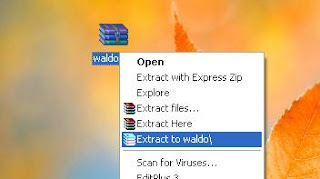
  2. Right click on the zip file and extract the content of this zip file.

  3. In extracted zip folder navigate to location xl->worksheets and right click on the password protected xml sheet.
  4. Open this sheet with Notepad and then search for the tag “sheetProtection”.

  5. Once you find the “sheetProtection” tag then you need to delete this tag and save the file.

  6. Now replace the old xml file (in zip archive) with this edited xml file. (You can also replace complete xl folder simply by dragging it to zip archive).
  7. Now change the zip archive extension from zip to xlsx and open the file.

Now you can edit the excel sheet without any password.
Note: - (a) Always make a backup copy of original excel file to avoid any accidental loss of data.
(b) This method works only with MS Excel 2007 and 2010.
(c) This method does not work to unprotect excel sheet if it is protected with “Password to Open” excel file. In such situation you can use excel password recovery software to open password protected excel file.
I hope that by following the above mentioned steps you can easily remove password of your encrypted excel sheet.
READ MORE - How to Crack Excel Password without Any Software?

Tuesday, October 23, 2012

How to unprotect excel sheet from read only password ?

-->
Password protection is one of the most important features of MS Excel. Password protection feature ensures that only authorized user can see or modify the data of the excel file. This feature allows user to set (mainly) two types of password on excel file: Password to open and Password to modify. First type of password (Password to open) restricts the user from opening the excel file whereas second type of password (Password to modify) can be used to protect excel sheet (or cells) from unauthorized modification.
Many times it happens that the authorized user forget excel file password and hence they also lost access from opening/editing the excel file. In such situation most of the user take help of excel password remover software to recover lost password.
Here I am sharing how you can edit read only password protected excel file without any password remover software.
  1. Login into your Gmail account.

  2. Click on documents (or open http://docs.google.com/ after you have login into Gmail account).
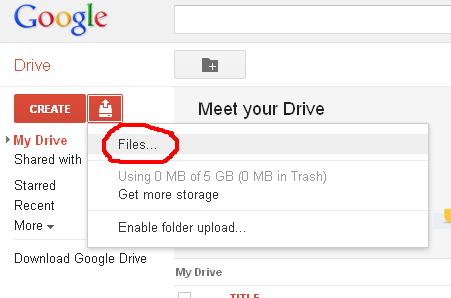
  3. Click Upload Document icon.

  4. Browse the file you want to edit and upload it.

  5. Now open the uploaded file with Google spreadsheet (Click File-> Open with ->Google Spreadsheets) and make the desired changes.

  6. Download the edited file as an Excel file.

  7. Now open the downloaded file. It will open in “Protected View”. Click “Enable Editing” to remove read only password permanently. 

Now your file is unprotected from read only password.

This is one of the best method to unprotect excel sheet without using any password remover software. The only limitation of this method is that it can not be used to remove “password to open” excel file. You can recover “password to open” excel file by using excel password recovery software.
READ MORE - How to unprotect excel sheet from read only password ?

LinkWithin

Related Posts Plugin for WordPress, Blogger...