Pages

Wednesday, January 18, 2012

How to solve “Unable to Log You on Because of an Account Restriction” error of remote desktop

-->
When you try to connect windows XP based computer system with the use of remote desktop tool, you may not allow to connect with that system and you may receive the following error message “Unable to Log You on Because of an Account Restriction”. When you are trying to connect with the computer which that null (blank) password it could be the main reason of this error. Remote desktop tool cannot establish connection with the system which have null password.

Microsoft offer solution of above problem, you need to setup a user account with some password to establish connection with remote desktop tool. So log on at the console of the computer, and then set a password for that user account.

Actually this behaviour is due to windows password restriction policy. So if you wish to establish connect which have null password then you need to disable password restriction policy. You can follow the steps as given below to disable restriction policy.

  1. Click Start, point to Run, type gpedit.msc, and then click OK to start the Group Policy Editor.
  1. Open Computer Configuration\Windows Settings\Security Settings\Local Policies\Security Options\Accounts: Limit local account use of blank passwords to console logon only.
  1. Double-click Limit local account use of blank passwords to consol logon only.
  1. Click Disabled, and then click OK.
  1. Quit Group Policy Editor.
By applying above method you can establish connection with the computer which have null (blank) password. If you have password protected computer then you must need to enter your password to establish connection. In case password is lost for remote desktop tool then there will be no connection created, in this situation you have to apply windows password recovery method.
READ MORE - How to solve “Unable to Log You on Because of an Account Restriction” error of remote desktop

Thursday, January 12, 2012

How To Protect PDF Document With Password

-->
Portable Document Format (PDF) Invented by Adobe. PDF Document is one of the most secure document formats because it encrypts content of document and allow user to create different type of password for different causes. You can set Password to open as well as restrict editing and printing PDF document with other password. To make protected PDF file you need to have full version of Adobe Acrobat software.
To apply password on PDF document follow steps written below.
  1. Open PDF document in Acrobat reader on which you want to apply password.
  2. Find “Secure” in main tool bar menu and then click on “Encrypt with password”.

  1. Password Security – Setting window will open, this windows contains three types of security options.
    .
a) Select document component to encrypt – This option allow us to select the portion of your document which you want to encrypt. It is advisable to select “Encrypt all document content”.

b) Require a Password to Open – This option allows us to create a password which is require to open PDF document. This password will protect document from unauthorized access.
c) Restrict Editing and Printing - This option allow us to restrict the user to edit or print your document. Set password this carefully because this password will ask at the time when you try to edit PDF document.
  1. When you finish all settings click “OK”.
  2. Now go to file menu and click on “save”. This file will be saved at original location will all your security settings.
In case if you have lost your PDF password to open or password to edit and print then you could not able to open or edit/print PDF file. In such situation you need to recover password of protected PDF file with some PDF password recovery software which is compatible with your system configuration.
READ MORE - How To Protect PDF Document With Password

Thursday, January 5, 2012

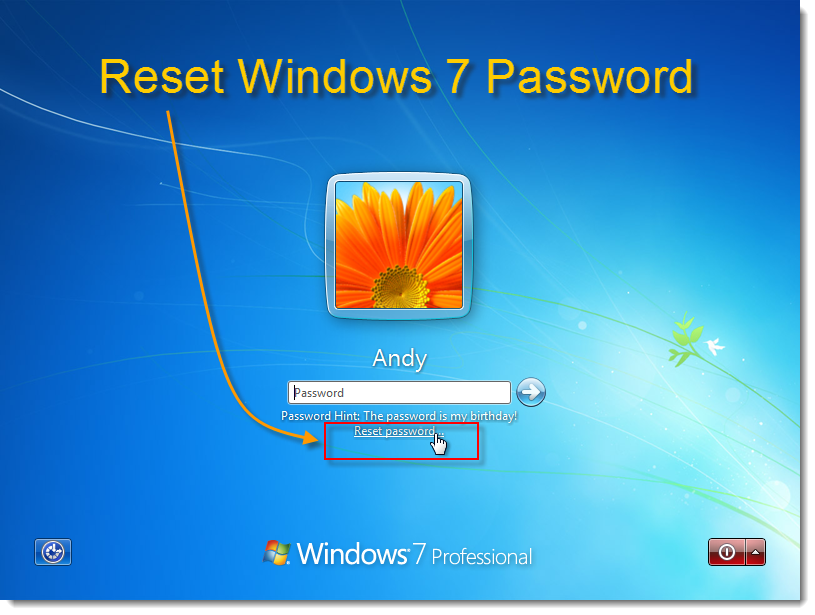
Reset Lost Windows 7 Administrator Password with Windows 7 Installation Disk

-->
Windows password loss is a common problem among computer users. Due to security reasons user set very strong password which can be combination of alphanumeric with special characters. User keeps changing their password frequently to avoid the password hacking. Really it is good to change the password on some time interval but there is probability of forgetting the password is too high. Luckily, we have several windows password recovery software’s are available which are capable to reset lost windows password in few steps.
There are few very helpful methods to reset lost windows 7 password. Using windows 7 installation disk is one such method, it required simple steps to reset lost administrator password.
Just you need to follow these simple as steps written below..
Step 1: Place the Windows 7 Installation disk into the optical drive and reboot your computer. Press any key on your keyboard when you see the following screen.
Step 2: Click the ‘Repair your computer’ link located on the lower left corner of your screen.
Step 3: When the ‘System Recovery Options’ dialog screen pops up, select the ‘Command Prompt’ link.
Step 4: Your next step will be to backup the original sticky keys file. When you see the ‘Command Prompt Window,’ type the following command, and hit ‘Enter:’

copy c:\windows\system32\sethc.exe c:\
Step 5: Now, you need to overwrite the original sticky keys file (located in c:\windows\system32\) with the command prompt executable. To do this, type the following command and hit ‘Enter:’

copy c:\windows\system32\cmd.exe c:\windows\system32\sethc.exe

To confirm, type ‘Yes’ and press ‘Enter’

Step 6: Remove the Windows 7 installation disk from the optical drive and reboot your computer normally. When you see the login screen, press the ‘Shift’ key on your keyboard 5 times. This will launch an administrator mode command prompt.
Step 7: Now it’s time to reset your password. All you have to do is type the following command and hit ‘Enter:’

Net user 'username' 'new password'

For example, net user Bill helloworld$$
Step 8: Finally, you should restore the original sticky keys file. To do this, repeat steps 1 – 3 and execute the following command:
copy c:\ sethc.exe c:\windows\system32\sethc.exe
This process will surely reset lost windows 7 password but for any reason if you are able to reset your windows 7 password with above method then try to use windows password recovery software. These are very advanced tool which are capable to reset lost password in few steps.
READ MORE - Reset Lost Windows 7 Administrator Password with Windows 7 Installation Disk

Tuesday, December 27, 2011

How to solve "Please enter the current password for [my account name]" of Eudora

-->
Eudora is one of the old e-mail client tools. It has been develop for both windows and Macintosh operating system. Eudora has been designed for non-traditional computing devices, which include mobile devices such as Palm OS. Sometimes it happen that when you try to login into Eudora e-mail client it gives a message "Please enter the current password for [my account name] " which is asking for password of your account. But you didn't know what to enter in this password field.

As per Eudora KB Eudora does not have any password. It has the password of your Internet Service Provider's (ISP) password or Network Administrator's password that Eudora is asking. You must need to provide that password before you can check and receive emails.
You need to contact your ISP or Network administrator to reset your password if you didn't remember. To avoid unauthorized access every mail server has a password. Otherwise everyone those using that computer can able to read your emails. You may never have noticed it before because of Eudora's option to save your password, so you don't have to enter it each time. This option is found under the Tools menu, Options, Checking Mail.

There are several reasons why Eudora asking for password

  1. There is an option Forget password? In Special menu. Did you ever click it? This command tells Eudora to stop remembering password.
  2. If you make changes in your checking mail setting Eudora will forget your password.
  3. Did you get an error from your mail server when checking for mail? Eudora will forget your password if it gets any server error from your mail server when giving the PASS command to the mail server.

If you loss Eudora e-mail client password, and you could not find it from other sources like ISP etc. Then you can use Mail password recovery software to recover lost password. This software will recover your lost password in one mouse click. You need to find email password recovery software which is compatible with your system configuration.
READ MORE - How to solve "Please enter the current password for [my account name]" of Eudora

Wednesday, December 14, 2011

Ways to Recover Lost Administrator Password of Windows XP

password hell
Image by Ron Bennetts via Flickr
-->
Windows password is best way to protect your computer from unauthorized access, whether it is for securing the innumerable email accounts or various applications and most importantly for the computer systems that most of the people use today. But the same advancement has been plagued with some major problems. And the most significant of these problems is that a password once set can be hacked if not changed on a regular basis, say once a week or month at the maximum. No matter how strong the password is, it may get hacked if user doesn't change it often. This brings the user to the state, where, user may forget the password in case particular account was not access from couple of weeks or so. So as user you must be having worry or thought ‘Is there any way to access or recover Window XP password? Without having old password, fortunately we have best password recovery software available which help user to access their account with lost administrator password.

A password is like the key that needs to put in the right way for a user to be able to get into their account. Otherwise, user’s Window XP administrator will be locked due to that user could not access saved files and important data/ document on the system. Let us see how a user can access their Microsoft Windows XP account even they have forgotten the set password.

The first and the foremost method have to try and recall the password. Was it your pet, somebody's maiden name, a phone number, or somebody's birthday date, address, something related to your past? Try to remember, and give it your best shot. That would certainly save you a lot of energy and money.
In case still the password is not recalled. Don't worry in this situation! Second as a user you can try to take help if there is other user's logged on to the system, and somebody else has administrator rights, then user may seek their help to reset password. If this doesn't work, then as user you can check the next step.

Do you remember that you created a password reset disk for your Windows XP. If you did, then, just pull it out! This is the right time to use it! But, in case you do not remember anything about it, then probably you didn't create it, and in case you did create one, you may not be able to recollect where you kept it! So forget it!

Now what? Are you planning to perform a clean installation of your Windows XP? Well, there is another option for you, before you decide to clean install the system! Opt for .Windows Password Recovery software. This software is very powerful and able to recover password in few minutes. It come with bootable CD, so you didn't required to install it. These are read only software so it didn't alter any windows internal files.
Enhanced by Zemanta
READ MORE - Ways to Recover Lost Administrator Password of Windows XP

Monday, December 12, 2011

Reset lost windows administrator password with Microsoft Diagnostics and Recovery Toolset (DaRT)

-->
Microsoft offers range very useful tools that help you quickly troubleshoot and repair windows based computer system. Microsoft Diagnostics and Recovery Toolset (DaRT) is one of the such tool which reduce cost and time to recover and repair computer that will not boot. It is combination of several utilities which recovers unbootable windows based desktop. With the use of Locksmith you can reset lost password of windows administrator. This is one of the best method of lost windows password recovery.

Reset windows password with Locksmith : Locksmith Wizard is tool which responsible to reset administrator or user password of windows based computer. To reset your password you did not required to know your current password. It have one restriction that the password which you choose must comply with local Group Policy object (GPO) defines that includes password length and complexity. Use this tool in the event that the password for a local account, such as the local Administrator account, is unknown. This tool cannot set passwords for domain accounts.

Steps To Start DaRT :

1) To use DaRT you first need to create it, first required to use ERD Commander Boot Media Wizard to create the ERD Commander boot media. To start wizard click on Start -- > All Programs ---> Microsoft Diagnostics and Recovery Toolset --- > ERD Commander Boot Media Wizard.

2) A box will open that will ask to select tools in your boot media.


3) To start DaRT Boot a physical computer by using the ERD Commander boot media.
4) In the final step it will show “System Recovery Options”. You need to select “Microsoft Diagnostics and Recovery Toolset (MSDaRT)”.


5) In the MSDaRT dialog box click on Locksmith.


6) Locksmith will allow you to reset password of any account of your computer. Just select account from drop down list and write new password.

READ MORE - Reset lost windows administrator password with Microsoft Diagnostics and Recovery Toolset (DaRT)

Thursday, December 8, 2011

How To Recover Lost Or Forgotten PDF Password

-->
PDF documents are largly used because of its security and flexibility. In all type of documents PDF are most secure because it uses passwords to restrict number activities. It have two type of password user and owner. PDF save in encrypted format, without having correct password anyone can not access protected PDF files.

But these advanced security features sometimes become problem, when user forgot or lost PDF password. Unfortunatly their is no other way to access password protected PDF file instead of having correct password. In the password loss situation PDF password recovery is required with some advanced PDF password recovery tool.

If you lost “password to open” document then it is quite difficult to recover password. There are three algorithms Brute Force attack, Key Search and Dictionary attack are available to recover lost password. You need to find a software which is using these methods .

Their are several PDF password recovery software are available, search on Internet and find that one which is compatible with your system configuration. Password recovery tools are read-only tools it doesn't alter your documents. Follow these steps to recover lost password...

  1. Download PDF password recovery tool.
  2. Install it on your computer.
  3. Launch PDF password recovery tool.

  4. Select file for which you want to recover password.
  5. Use mask if you remember anything about password.
  6. Click on Start.
READ MORE - How To Recover Lost Or Forgotten PDF Password

LinkWithin

Related Posts Plugin for WordPress, Blogger...