Pages

Showing posts with label Password recovery. Show all posts

Thursday, January 5, 2012

Reset Lost Windows 7 Administrator Password with Windows 7 Installation Disk

-->
Windows password loss is a common problem among computer users. Due to security reasons user set very strong password which can be combination of alphanumeric with special characters. User keeps changing their password frequently to avoid the password hacking. Really it is good to change the password on some time interval but there is probability of forgetting the password is too high. Luckily, we have several windows password recovery software’s are available which are capable to reset lost windows password in few steps.
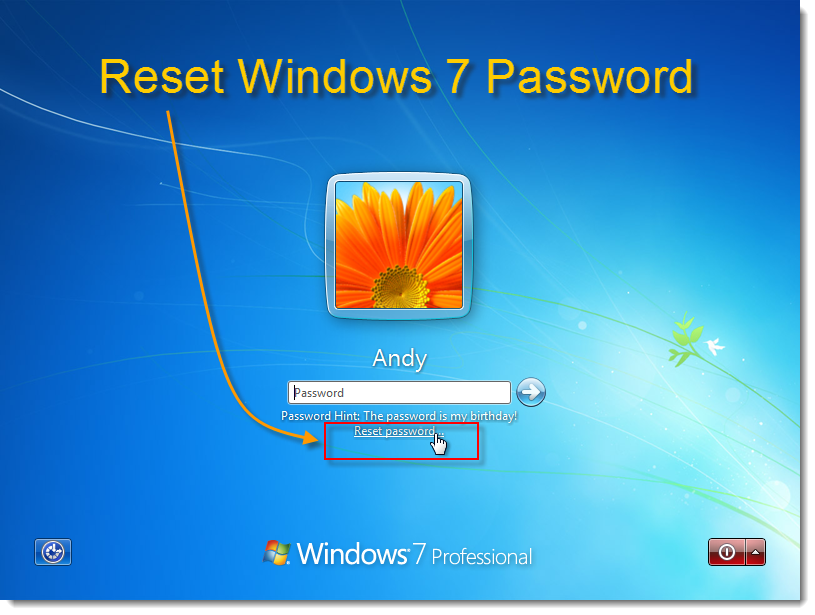
There are few very helpful methods to reset lost windows 7 password. Using windows 7 installation disk is one such method, it required simple steps to reset lost administrator password.
Just you need to follow these simple as steps written below..
Step 1: Place the Windows 7 Installation disk into the optical drive and reboot your computer. Press any key on your keyboard when you see the following screen.
Step 2: Click the ‘Repair your computer’ link located on the lower left corner of your screen.
Step 3: When the ‘System Recovery Options’ dialog screen pops up, select the ‘Command Promptlink.
Step 4: Your next step will be to backup the original sticky keys file. When you see the ‘Command Prompt Window,’ type the following command, and hit ‘Enter:’

copy c:\windows\system32\sethc.exe c:\
Step 5: Now, you need to overwrite the original sticky keys file (located in c:\windows\system32\) with the command prompt executable. To do this, type the following command and hit ‘Enter:’

copy c:\windows\system32\cmd.exe c:\windows\system32\sethc.exe

To confirm, type ‘Yes’ and press ‘Enter’

Step 6: Remove the Windows 7 installation disk from the optical drive and reboot your computer normally. When you see the login screen, press the ‘Shift’ key on your keyboard 5 times. This will launch an administrator mode command prompt.
Step 7: Now it’s time to reset your password. All you have to do is type the following command and hit ‘Enter:’

Net user 'username' 'new password'

For example, net user Bill helloworld$$
Step 8: Finally, you should restore the original sticky keys file. To do this, repeat steps 1 – 3 and execute the following command:
copy c:\ sethc.exe c:\windows\system32\sethc.exe
This process will surely reset lost windows 7 password but for any reason if you are able to reset your windows 7 password with above method then try to use windows password recovery software. These are very advanced tool which are capable to reset lost password in few steps.
READ MORE - Reset Lost Windows 7 Administrator Password with Windows 7 Installation Disk

Wednesday, December 14, 2011

Ways to Recover Lost Administrator Password of Windows XP

password hell
Image by Ron Bennetts via Flickr
-->
Windows password is best way to protect your computer from unauthorized access, whether it is for securing the innumerable email accounts or various applications and most importantly for the computer systems that most of the people use today. But the same advancement has been plagued with some major problems. And the most significant of these problems is that a password once set can be hacked if not changed on a regular basis, say once a week or month at the maximum. No matter how strong the password is, it may get hacked if user doesn't change it often. This brings the user to the state, where, user may forget the password in case particular account was not access from couple of weeks or so. So as user you must be having worry or thought ‘Is there any way to access or recover Window XP password? Without having old password, fortunately we have best password recovery software available which help user to access their account with lost administrator password.

A password is like the key that needs to put in the right way for a user to be able to get into their account. Otherwise, user’s Window XP administrator will be locked due to that user could not access saved files and important data/ document on the system. Let us see how a user can access their Microsoft Windows XP account even they have forgotten the set password.

The first and the foremost method have to try and recall the password. Was it your pet, somebody's maiden name, a phone number, or somebody's birthday date, address, something related to your past? Try to remember, and give it your best shot. That would certainly save you a lot of energy and money.
In case still the password is not recalled. Don't worry in this situation! Second as a user you can try to take help if there is other user's logged on to the system, and somebody else has administrator rights, then user may seek their help to reset password. If this doesn't work, then as user you can check the next step.

Do you remember that you created a password reset disk for your Windows XP. If you did, then, just pull it out! This is the right time to use it! But, in case you do not remember anything about it, then probably you didn't create it, and in case you did create one, you may not be able to recollect where you kept it! So forget it!

Now what? Are you planning to perform a clean installation of your Windows XP? Well, there is another option for you, before you decide to clean install the system! Opt for .Windows Password Recovery software. This software is very powerful and able to recover password in few minutes. It come with bootable CD, so you didn't required to install it. These are read only software so it didn't alter any windows internal files.
Enhanced by Zemanta
READ MORE - Ways to Recover Lost Administrator Password of Windows XP

Monday, December 12, 2011

Reset lost windows administrator password with Microsoft Diagnostics and Recovery Toolset (DaRT)

-->
Microsoft offers range very useful tools that help you quickly troubleshoot and repair windows based computer system. Microsoft Diagnostics and Recovery Toolset (DaRT) is one of the such tool which reduce cost and time to recover and repair computer that will not boot. It is combination of several utilities which recovers unbootable windows based desktop. With the use of Locksmith you can reset lost password of windows administrator. This is one of the best method of lost windows password recovery.

Reset windows password with Locksmith : Locksmith Wizard is tool which responsible to reset administrator or user password of windows based computer. To reset your password you did not required to know your current password. It have one restriction that the password which you choose must comply with local Group Policy object (GPO) defines that includes password length and complexity. Use this tool in the event that the password for a local account, such as the local Administrator account, is unknown. This tool cannot set passwords for domain accounts.

Steps To Start DaRT :

1) To use DaRT you first need to create it, first required to use ERD Commander Boot Media Wizard to create the ERD Commander boot media. To start wizard click on Start -- > All Programs ---> Microsoft Diagnostics and Recovery Toolset --- > ERD Commander Boot Media Wizard.

2) A box will open that will ask to select tools in your boot media.


3) To start DaRT Boot a physical computer by using the ERD Commander boot media.
4) In the final step it will show “System Recovery Options”. You need to select “Microsoft Diagnostics and Recovery Toolset (MSDaRT)”.


5) In the MSDaRT dialog box click on Locksmith.


6) Locksmith will allow you to reset password of any account of your computer. Just select account from drop down list and write new password.

READ MORE - Reset lost windows administrator password with Microsoft Diagnostics and Recovery Toolset (DaRT)

Friday, November 11, 2011

Best Free Method To Reset Lost Windows Password

Lost windows user account password can be reset with windows administrator account. In case both user account & administrator password has been lost then it is difficult to reset windows password. There are several windows password recovery tools available to reset lost windows password, which work perfectly and reset password in few mouse clicks. All these software are paid and you will have to purchase. If you don't want to spend money on software then there is a way which may help you to reset lost password with yourself by repairing windows operating system.

Follow the steps written below to reset windows password:

1)Insert windows setup CD and boot your system and follow instruction.
2)Press “R” when it asks to repair your existing windows installation.

3)Now setup will start repairing existing windows. It will start copying files.
4)After few minutes your system will restart automatically. At one time "Press any key to continue..." message will appear on the screen, DO NOT press any key at this time. Setup will resume again.
5)A progress bar will display and start doing some other task.
6)Please look carefully on the screen and wait for the time when "Installing devices" will show on the screen, at this point of time, press +F10.

7)Command prompt windows will open, Now type nusrmgr.cpl and press .
8)It will open user accounts, just like which you seen in Control Panel.
9)From here you can reset or remove password of any account.  

If above method doesn't work for you then password recovery software will be best option.
READ MORE - Best Free Method To Reset Lost Windows Password

Monday, June 27, 2011

Reset Passwords which are auto assigned to user accounts after you upgrade to windows XP

-->
Windows operating system is most trusted OS. It have great security features, to prevent unauthorized access. But some times these security features may create problem for users. If you are upgrading windows xp then be careful because windows xp may assign auto generated password to user accounts (these account may not have password previously). You will not able log on in to your computer because you don't know user password.
This problem occurs due to windows setup (i.e. Installation or upgrade) not completed properly. Windows setup assigns temporary password during the upgrade process and it suppose to remove this password when setup completed. You can find this temporary password in Setupact.log file that present in the folder where windows xp is installed.
It is very easy to overcome from this problem. There is separate solution for FAT and NTFS based partitions. Steps to reset auto generated password in windows XP for NTFS partitions are written below.
  1. Change BIOS setting and make CD-ROM drive as first boot device.
  2. Insert bootable windows XP CD in to CD-ROM drive and restart your computer.
  3. During reboot “Press any key to boot from CD” message will be displayed on monitor, press any key to boot from windows bootable disk.
  4. Press “R” for recovery console when “Welcome to setup” screen is displayed.
  5. Select the installation that you need to access from the Recovery Console.
  6. You are prompted for the Administrator password. If the Administrator password is set to use a blank password, just press ENTER.
  7. Type “type setupact.log” kine on command promt and press ENTER.
  8. Search for the following line, where Username is name of account and xxxxxxxxxxxxx is password for account.
  9. Please note down password that appears in Setupact.log file.
  10. Type exit at the command prompt, and then press ENTER to quit the Recovery Console and restart the computer.
  11. Now you can log on into your system with the password which you retrieves from Setupact.log.
After successful login in to your system you can change password with use of control panel.
For any reason if you are not able to retrieve password from Setupact.log, then find third party password recovery software to reset windows password.
READ MORE - Reset Passwords which are auto assigned to user accounts after you upgrade to windows XP

Thursday, January 20, 2011

How to create password reset disk in windows 7

Image representing Windows as depicted in Crun...Image via CrunchBase
Windows 7 has excellent security features. It come with very strong login security, you can set login password in several ways. These strong security features sometimes create problems for user. If user or admin of windows 7, forget login password then windows does not allow to access files and folders. To regain access of your account you need to recover windows 7 password. You can easily reset it with "Reset Disk" if you ever created, It allows to create new password without having old. Reset disk is created for local user accounts, it is not applicable for remote systems. Use password recovery software if you don't have reset disk.
Follow these steps to create password "Reset disk": It will help to create new login password when you lost it. To create reset disk you need a storage media like floppy disk, floppy drive or USB flash drive. CD/DVD are not allowed in this process.
1) Insert storage media.
2) Open user account and click on start button.
3) Open Control Panel.
4) Click User Accounts and Family Safety.
5) Now Click on User Accounts.
6) You will a option Create a password reset disk, Click on this option.
7) Fill all required entries and finish.
Your password reset disk has been created, it is advisable that store this disk at safe place because if anyone got this disk, can easily access you computer system. what you can do if you don't have this reset disk and you lost access of your computer? Simple solution of your problem is password recovery tools. These tools are not need to install because they come with bootable CD. These tools are very advance, does not alter windows security setting while recovery process. Several tools are available first install demo version if you are satisfied with result then go with full version.
Enhanced by Zemanta
READ MORE - How to create password reset disk in windows 7

Monday, November 15, 2010

Windows password recovery guide

-->
With the ability to apply password, it has become fairly simple for a user to safeguard files and data. It is no longer a threat to save data on the computer, unless the password is either hacked, or given to a non-reliable person. That is why, Windows and other application providers urge the users to change the password on a regular basis. Though this procedure, if followed by people helps them avert non-ethical usage of their system or data, they are susceptible to another problem. They may lose or forget their password. Such a situation is, not only unavoidable, but also creates a lot of problem for the actual user. Unless, they have a strategy in place to recover Windows password.
Let us see what password recovery strategies can help prevent data loss in such a situation:
If you had created a password reset disk, then just fish it out, and on the logon screen, choose 'Reset Password' and insert the reset disk. Just follow the instruction that appear. And you are done. You are ready to use your computer and change the password.
If you didn't know about this, then you may try to login as an administrator, and try to reset your account password.
If you do not have another administrator account, don't worry, you still have a way out. Insert the boot disk to repair the operating system. Once you do that, enter the recovery console, and type:
net user administrator /active:yes
net user account_name new_password
where,
'account_name' refers to the account for which password needs to be reset, and
'new_password' refers to the new password that you want to set.
But in case the above methods do not work for you, then you may want to reinstall your Windows installation. However, this puts your data and all other applications at risk of loss. If that is not acceptable, then you have little choice but to opt for a Windows password recovery software to get back your crucial data and system back into normal condition.

READ MORE - Windows password recovery guide

Friday, November 12, 2010

Recovery of forgotten windows admin password

A Windows administrator password, also known as the administrator password is the password used to log on to any Windows account that has administrative access. This password prevents unauthorized access to important information stored in the computer and is required for each attempt to start the computer. Windows stores the password in the log file based called SAM (Security Accounts Manager). This is a database that is located in% SystemRoot% \ System32 \ Config. The administrator has to remember the password to access the data stored in it. In this case, the manager forget or lose the password, the problem can become a nightmare of data loss as they lose access to data and are forced to find some solutions for Windows Password Recovery.

A Windows administrator account can lose or forget the password. Consider an example, when storing critical data on your hard drive and as a safety net, set an administrator password. Do not use the computer for a considerable time. But later, when you try to log on the same computer, you realize you can not remember the admin password. Consequently, all data is stored becomes inaccessible.


The following are some tips that can help you regain access to data in these cases:

Try to remember the password is possible. Try to log most frequently used passwords
It is possible that you have not assigned any password. So try to leave the password blank and press 'Enter'


Check if another user has an account on the Windows computer with access to administrative level. If so, can let you designate that user as administrator


Perform a clean install Windows. But this is recommended as a method has the potential for loss of critical data
Use a third Windows
Password Recovery Software

Windows Password Recovery Solutions demonstrated as viable options in case of lost or forgotten Windows. These applications allow you to retrieve one or set a blank password without setting any risk of data loss.

READ MORE - Recovery of forgotten windows admin password

Tuesday, November 9, 2010

A comprehensive Guide for All Those Who Have Forgotten Windows Password

-->
With the ability to apply password, it has become fairly simple for a user to safeguard files and data. It is no longer a threat to save data on the computer, unless the password is either hacked, or given to a non-reliable person. That is why, Windows and other application providers urge the users to change the password on a regular basis. Though this procedure, if followed by people helps them avert non-ethical usage of their system or data, they are susceptible to another problem. They may lose or forget their password. Such a situation is, not only unavoidable, but also creates a lot of problem for the actual user. Unless, they have a strategy in place to recover Windows password.
Let us see what password recovery strategies can help prevent data loss in such a situation:
If you had created a password reset disk, then just fish it out, and on the logon screen, choose 'Reset Password' and insert the reset disk. Just follow the instruction that appear. And you are done. You are ready to use your computer and change the password.
If you didn't know about this, then you may try to login as an administrator, and try to reset your account password.
If you do not have another administrator account, don't worry, you still have a way out. Insert the boot disk to repair the operating system. Once you do that, enter the recovery console, and type:
net user administrator /active:yes
net user account_name new_password
where,
'account_name' refers to the account for which password needs to be reset, and
'new_password' refers to the new password that you want to set.
But in case the above methods do not work for you, then you may want to reinstall your Windows installation. However, this puts your data and all other applications at risk of loss. If that is not acceptable, then you have little choice but to opt for a Windows password recovery software to get back your crucial data and system back into normal condition.
READ MORE - A comprehensive Guide for All Those Who Have Forgotten Windows Password

Sunday, September 19, 2010

How to recover admin password in windows 7


Technology changes, and we will change accordingly. Once computer users only worked on MS-DOS. Today, many non-tech-savvy Windows 7 users do not even know anything about MS -DOS. So things are changing. At the beginning of things are complex, but today, they are not. But does that mean we have less problems? The answer is: No. The problems previously faced different problems we face today. For example, to load MS DOS, do not have to enter a password, but Windows 7, and many allow for earlier versions, and needless to say, upon request. Without entering the administrator password, you can not access your account. This means that if you forget, then you can not access your account. Unless you have some strategy for Windows 7 password recovery.

Because different computers and different versions of Windows have different strategies to recover the password for Windows, you have to find the appropriate method.
Now what kind of strategy can be adapted for a Dell laptop that is installed with operating system Windows 7.

Always have a password reset disk ready for this type of situation. This could be a USB memory key or floppy disk. At the logon screen of Microsoft Windows 7 that appears on your Dell laptop, click Reset password, and insert the restore disk. After that, you simply need to follow the instructions on the screen. This disc is specific to recover the password for a user account, and is valid for that account, regardless of how many times you change the password until a new record is created.

However, if you're reading this article after you lose your password, to see what can be done, then you have to install Windows 7. However, if you do not have a backup, then you have to be prepared to lose your vital data, unless you have a password recovery software with you.
These are the third-party tools that use complex algorithms to the system for recovering Windows passwords effectively without reinstalling your Windows account.
READ MORE - How to recover admin password in windows 7

Monday, September 13, 2010

Forgot Your Password? Reset It!

Setting passwords to your Windows account is a fool-proof way that is used by almost all the Windows users worldwide. A password informs the system that the information is not being accessed by unauthorized people. A password generally comprises a secret word or phrase known only to the user or to a restricted group of people. Today, most of the applications insist that a user sets a password so that his files and data are accessible to him/her alone. For example, web-based emails, FTP (File Transfer Protocol) clients, email clients, IM (Instant Messaging) clients, and many more. But if the user forgets his/her password, then he/she needs to recover Windows password using specialized methods, or by opting for password recovery software.
Enlisted below are a few methods that a user can apply to recover his/her passwords in such a critical situation:
Password Hints in Windows: It is a simple method that can be applied by a user to recover password in Windows. This hint is generally located next to the password prompt text box, and when clicked asks you the hint question that you specified when you had set the password.
Password Reset Disk in Windows: Microsoft understands that such a situation can occur, and that is why Windows today enables the user to create a password reset disk, which when inserted allows the user to access the system, and to reset the password.
Forgot password in emails and IM clients: Since forgetting password is something which is not a new problem, these applications too consider that a user may forget his or her password. So, in case you forget password for these applications, then you simple need to select 'Forgot Password', and a new screen pops up that allows the user to enter a secondary email ID and a security question. On answering the question correctly, the login details are sent to the secondary email ID provided by you.
However, in case the specified ways do not work, and you are stuck, then you have no option but to opt for third-party password recovery software. These tools are capable of resetting your password, in case you forget the same.
Stellar Phoenix Windows Password Recovery is an advanced yet comprehensive application that is used to recover Windows passwords. It also recovers forgotten user names and passwords of applications accessed through various web browsers (Internet Explorer, Mozilla, MSN, Netscape Navigator, and more), FTP clients (Cute FTP, Smart FTP etc.), IM (Google Talk and Windows Live), and email clients (Microsoft Outlook Express and Incredimail). Capable of recovering serial numbers and activation keys for applications that have been previously installed, the tool is a must have for all password recovery needs.
READ MORE - Forgot Your Password? Reset It!

Friday, August 20, 2010

Lost windows admin password ? Follow these steps to recover..

Have you ever encountered a situation where you have lost your all important Windows password, and you are locked out of your system? Well, I have! And believe me, it is one messy situation to handle! But with a few Password recovery steps, it is possible to access your Windows system and recover critical data from it.

  • If you are a cautious user, then you must have created a password reset diskette. Just insert that to reset your administrative password.

  • If you can log on as an administrator, then you can reassign a password to your account.

  • If you have not created a password reset disk previously, or cannot log on as an administrator, and have encountered this situation, like me, you still have two options:

  • Use MS Windows boot disk to repair the operating system. This sets the password as blank and allows you to set a new password after the next boot.

  • Another is to reinstall Windows and all the other programs that had been installed earlier on your computer, to use it.

  • But, if you do not have Windows boot disk, and thus cannot perform the above stated step, then you need to opt for a third-party tool to recover Windows password. These are special Password recovery software that deploy complicated algorithms to reset the password of your Windows operating system. These software recover passwords for most of the Windows applications, product key serial number, and user names and passwords of all the accounts accessed through web browsers, e-mail clients, and FTP clients installed on the computer.

A popular software capable of delivering above stated functions/features is Stellar Phoenix Password Recovery. Compatible with Windows 7, Vista, XP, 2003, Server (2000-2008), and 2000, this Password recovery software has a simple graphical user interface, detailed documentation, and read only nature along with the live update feature to upgrade itself to the latest version.


READ MORE - Lost windows admin password ? Follow these steps to recover..

Tuesday, July 13, 2010

Easy ways to recover lost or forgotten Windows administrator password

Computer users often password protect their Windows administrator account in order to avoid security breaches. This way they restrict the unauthorized people to gain access to their vital, sensitive and personal information. The administrator password is usually created at the time of operating system installation. Through administrator account, you can customize your machine in whichever way you want. In order to secure information from any possible threat, you must set a complex password including alphanumeric and special characters. However, setting a strong password has its own disadvantages. You might come across situations when you could not recall the administrator password and could not log on into your system. Fortunately, you can overcome the problem by opting for a reliable Windows password recovery software.
Forgetting crucial passwords is a common thing in today's computer dominated world. You might have to remember different passwords for different applications and e-mail clients. This situation aggravates the problem, as you cannot recall a forgotten password. Also, losing administrator password can come across as a nightmarish experience as it renders you with data inaccessibility. Luckily, you can follow the below-mentioned steps in order to recover Windows administrator password:
  • Try to look for a possible clue near you. You might have preserved the password in some hard copy or a sheet of paper or a CD.
  • Try a set of other frequently used passwords. It might click as people often set same passwords for different applications.
  • If you are not concerned about the data stored on your computer, and want to gain access to your computer again, then you can consider reinstalling Windows.
  • If nothing works, and you want to restore access to your PC as soon as possible, then use a third-party password recovery software.
Such password recovery tools are the most effective way to reset the administrator password. Windows store all passwords in a hashed format in a file called as SAM (Security Accounts Manager). These Windows password recovery software basically go through these files and reset the administrator account and other passwords.
You can download a password recovery tool from the Internet and recover administrator account password within minutes.

READ MORE - Easy ways to recover lost or forgotten Windows administrator password

How to recover forgotten password of emailing sites from Mozilla Firefox

Mozilla Firefox is a free and open sourced Web browser, which many people use it all around the world. It is a multi-tabbed browser that provides various types of extensions to let you do multi-tasking while working on a single site only. It is a very light-weighted browser that makes surfing really a nice experience. In addition, this browser supports adding various add-ons that it keeps on adding to its armory. One such add-on is the Better Cache add-on that enables you to control the cache settings so that you can judiciously use the bandwidth on offer. One of its options is the 'Everytime a site opens' option which saves the cache settings for a particular site everytime you open it. This is particularly useful when you have stored the passwords of your email accounts in the browser. In such scenarios, you can recover password of your email accounts and other sites using a password recovery software.
Consider a scenario wherein you use 'gmail' to perform the emailing tasks in Mozilla Firefox 3.5 at your organization. As a safe practice, you usually change your password every month or so as you are using gmail on public system. However, this time around when you tried to login to your account you are unable to do so. You tried hard to recall the recently changed password but were unable to remember it. Also, you tried to use different combinations of password that you used previously to set the password but to no avail.
In such situations, you should use a third-party windows password recovery software to get the password back. Such tools are extremely useful in such kinds of situations and recover password without much difficulty. However, there is one condition that needs to be true for the exact password recovery. You should enable the setting that remembers the passwords of all the email sites in the cache. Also, you should not remove the history of the Internet usage to make the password recovery successful.
READ MORE - How to recover forgotten password of emailing sites from Mozilla Firefox

Friday, July 9, 2010

Easy ways to recover lost or forgotten Windows administrator password

Computer users often password protect their Windows administrator account in order to avoid security breaches. This way they restrict the unauthorized people to gain access to their vital, sensitive and personal information. The administrator password is usually created at the time of operating system installation. Through administrator account, you can customize your machine in whichever way you want. In order to secure information from any possible threat, you must set a complex password including alphanumeric and special characters. However, setting a strong password has its own disadvantages. You might come across situations when you could not recall the administrator password and could not log on into your system. Fortunately, you can overcome the problem by opting for a reliable Windows password recovery software.

Forgetting crucial passwords is a common thing in today's computer dominated world. You might have to remember different passwords for different applications and e-mail clients. This situation aggravates the problem, as you cannot recall a forgotten password. Also, losing administrator password can come across as a nightmarish experience as it renders you with data inaccessibility. Luckily, you can follow the below-mentioned steps in order to recover Windows administrator password:

Try to look for a possible clue near you. You might have preserved the password in some hard copy or a sheet of paper or a CD.
Try a set of other frequently used passwords. It might click as people often set same passwords for different applications.
If you are not concerned about the data stored on your computer, and want to gain access to your computer again, then you can consider reinstalling Windows.
If nothing works, and you want to restore access to your PC as soon as possible, then use a third-party password recovery software..

Such password recovery tools are the most effective way to reset the administrator password. Windows store all passwords in a hashed format in a file called as SAM (Security Accounts Manager). These Windows password recovery software basically go through these files and reset the administrator account and other passwords.

You can download a password recovery tool from the Internet and recover administrator account password within minutes.
READ MORE - Easy ways to recover lost or forgotten Windows administrator password

Thursday, July 8, 2010

How to recover forgotten password of emailing sites from Mozilla Firefox


Mozilla Firefox is a free and open sourced Web browser, which many people use it all around the world. It is a multi-tabbed browser that provides various types of extensions to let you do multi-tasking while working on a single site only. It is a very light-weighted browser that makes surfing really a nice experience. In addition, this browser supports adding various add-ons that it keeps on adding to its armory. One such add-on is the Better Cache add-on that enables you to control the cache settings so that you can judiciously use the bandwidth on offer. One of its options is the 'Everytime a site opens' option which saves the cache settings for a particular site everytime you open it. This is particularly useful when you have stored the passwords of your email accounts in the browser. In such scenarios, you can recover password of your email accounts and other sites using a password recovery software
Consider a scenario wherein you use 'gmail' to perform the emailing tasks in Mozilla Firefox 3.5 at your organization. As a safe practice, you usually change your password every month or so as you are using gmail on public system. However, this time around when you tried to login to your account you are unable to do so. You tried hard to recall the recently changed password but were unable to remember it. Also, you tried to use different combinations of password that you used previously to set the password but to no avail.
In such situations, you should use a third-party windows password recovery software to get the password back. Such tools are extremely useful in such kinds of situations and recover password without much difficulty. However, there is one condition that needs to be true for the exact password recovery. You should enable the setting that remembers the passwords of all the email sites in the cache. Also, you should not remove the history of the Internet usage to make the password recovery successful.
READ MORE - How to recover forgotten password of emailing sites from Mozilla Firefox

Thursday, June 17, 2010

Recovering lost password from a Windows system

In a Windows system, an administrator or the holder of administrator account can access any other system in the organization. For this purpose, the administrator uses a password known as admin password. Using this password, an administrator can reset the passwords of other Windows users as well. Windows stores this password in its registry-based file called SAM (Security Accounts Manager). It is a database that is located at %SystemRoot%\System32\Config folder. All said and done, sometimes it may happen that you forget the admin password. Because of this, you are unable to access the system that makes valuable data inaccessible. In such cases, you should try all sorts of techniques that you can, to remember or regain the forgotten password. However, if you are not able to do so, then you should use a third-party Windows Password recovery software to recover the Windows password.

Consider a scenario wherein you forgot the administrator password for your computer system. You recently changed the password as you were prompted to do so. You have used the earlier password for quite a long time and remember that password only. You try all sorts of permutations and combinations for the password but to no avail. You desperately need to get the password to retrieve all your vital data.

In the given scenario, there are few things that you can do such as:

Try to recollect the password as hard as you can. I know you must have done that a lot of times but give it a try one last time.
It may be possible that you may have not assigned any password to the user account. So, leave the Password field blank and press 'Enter'.
Do check if any other user has got the administrative rights for your computer. If yes, then allow that person to unlock the system for you.
As a last resort, you can also consider reinstalling Windows operating system. However, that would make you lose the data that you may not otherwise lose if you have the password.

However, if the aforementioned methods are not able to resolve the issue then you should use a third-party password recovery software to do the needful for you. Such tools are capable of either recovering the password for you or putting a blank password for the same.
READ MORE - Recovering lost password from a Windows system

Saturday, June 12, 2010

Using password recovery software when Password Reset Disk is unable to recover password

We know that our brain can remember a lot of things, but provided one keeps on reminding it. For example, lot of us remember certain dates like birthday, anniversaries, etc because we need to put these dates in lot of places like admission forms, email registration, etc. On the contrary, the things or tasks that we do not perform on a regular basis tend to slip out of our minds. The passwords of some our user accounts fall in such situations. A lot of us keep a system password for their computers, which we sometimes forget if we have not used it for long or if we have recently changed it. There are some methods that you can use to recover the system password. However, if you are not able to recover Windows password then you should use a password recovery software to do the needful.
There could be following reasons as well because of which you would need a password recovery software:
  • You are unable to recall the password of Windows user account, chat messenger, or email account, etc.
  • A particular user in your organization has left and you need to unlock and access the computer system.
  • You have lost the sheet of paper in which the password was written.
  • You have accidentally deleted the file in which the password was saved.

To ward off such instances in the future, you should create a Password Reset Disk, which enables you to keep a new password for Windows logon. To do this, you should perform the following steps:
  • Open User Accounts by following Start | Control Panel | User Accounts.
  • Select the user whose account you want to modify.
  • Click the Prevent a forgotten password option under Related Tasks, and click Next.
  • Insert a removable media such as a floppy disk, and click Next.
  • In the Current user account password text box, enter the password that you want to keep, and click Next.
  • When the progress gets completed, then click Next and then click Finish. You can use this disk to recover the forgotten password.

However, there may be chances when you are unable to recover Windows password because of any reason. In such cases, you should use a password recovery software to perform password recovery. Such tools reset the Windows password to a blank password.
READ MORE - Using password recovery software when Password Reset Disk is unable to recover password

Monday, May 17, 2010

Type of passwords for windows operating system

Windows 7 is the latest stable Windows operati...Image via Wikipedia

-->
For providing security to your computer system, what usually you do ?. Very simple, lock your computer with passwords. But do you know how many types of passwords that you can apply on windows operating system ?. Basically three types of password you can apply to providing security to you data. But when you lost or forget these password then how will you get access of your computer so that you can get your valuable data. You need to use windows password recovery software to get access of your computer again.
There are basically three type password by which you can lock your computer:
1)Administrator password: This is most common and easiest way to provide security to our data. By few mouse clicks you can provide administrator password to your data. Different version of windows OS have different option to set administrator password.
a) In windows 2000 or XP : Click on Start->Run , in run window type lusrmgr.msc and click “OK”. A window will be open Double click on User folder , on the right hand site list of users will open, right click on administrator folder and select Set Password.
b) In Windows Vista: Click on Start--->Start Search, in search window wight lusrmgr.msc, and proceed as above.
2)BIOS Password: BIOS is the first program that on you computer when you start your computer. So you can set password for BIOS so that it restrict unauthenticated user to access your computer.
For setting this password you need to reboot your computer, then a massage will appear “ Press Del key for BIOS setting ”(Some BIOS ask for F2 or F10). When you hit respective key BIOS windows will appears, In the mane of BIOS you will find “Security” click on that and you will find option for setting password.
3)Hard Disk password: If you required high security then use this method to provide password to your computer. It is very secure but little bit risky because if you forget your Hard disk password then your not able to access your hard drive even on different computer system.

How to set Hard Disk Password: It is very easy to set hard drive password, steps for setting password are given below:

Open BOIS----->Select security--------->Select Hard disk password.
Reblog this post [with Zemanta]
READ MORE - Type of passwords for windows operating system

Monday, May 10, 2010

How To Reset Windows Administrator Password

{{fr|1=Appareil de restitution photogrammétriq...Image via Wikipedia
In the case when you lost or forget windows administrator password then there is no need to worry, because there are several ways why which you can reset your windows account password.

1)Use different profile
2)Use command prompt to reset password
3)Use third party windows password recovery software.


1)Use different profile to reset password: If you are able to log on with different user account which have administrative credentials then use following steps to reset your administrator password.
a) Log on with different account which have administrative credentials. May be you need to run your computer in to safe mode.

b) Click Start------>Click Run

c)In Run Box type “Control userpasswords2”---> Click OK

d)A window will open then click the account for which you forget password. Then click “Reset password”.

e)Type new password and click “OK”

2)Use Command Prompt To Reset Password: You can reset your windows administrator password with command prompt.
a) Log on with valid account
b)Open Command Prompt.
c)For getting list of users Type:- net user
d)Type : net user administrator * , this will provide list of user which have administrative credentials.
e) type: net user (any account on that list)* , you will get prompt for password
Enter password then confirm it.
3)Use third party software to reset password: If you are not able to reset your windows administrator password by using above methods then use third party windows password recovery software to reset your windows password.


Reblog this post [with Zemanta]
READ MORE - How To Reset Windows Administrator Password

LinkWithin

Related Posts Plugin for WordPress, Blogger...

